Introduction
This article covers the initial set up instruction for the installation of an APPC-10XP tablet for the Elevate Dispatch System.
Key elements covered will be:
- Physical Installation
- Network Connection
- Configuration Update
- Technical Drawing
1. Physical Installation
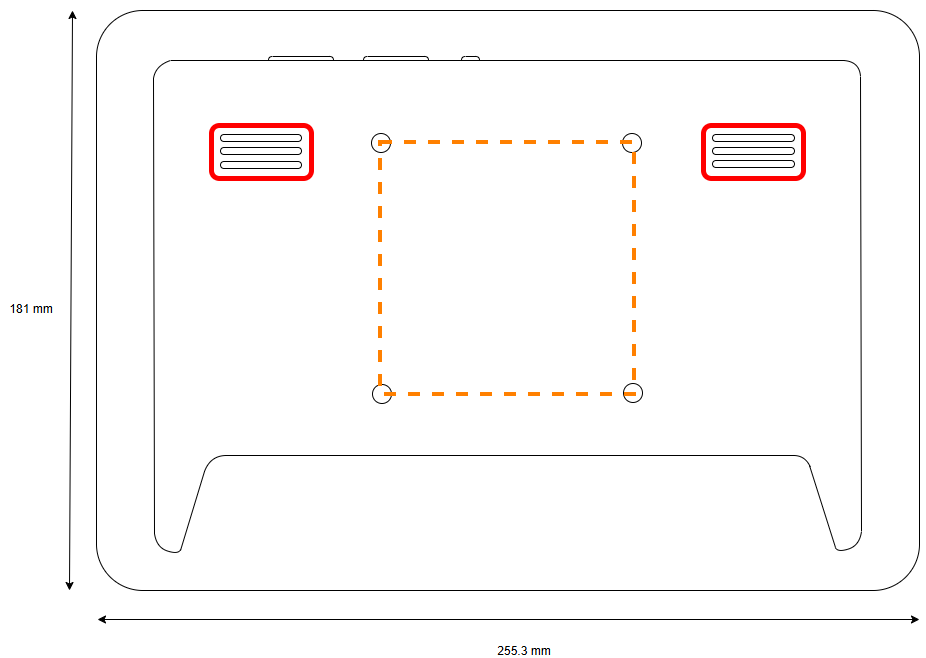

The APPX-10XP measures 255.3 mm wide by 181 mm tall by 26.7 mm thick, as per the diagrams above.
Mounting of the APPX-10XP can be done via the VESA 75 mounting holes on the rear of the tablet, highlighted in orange.
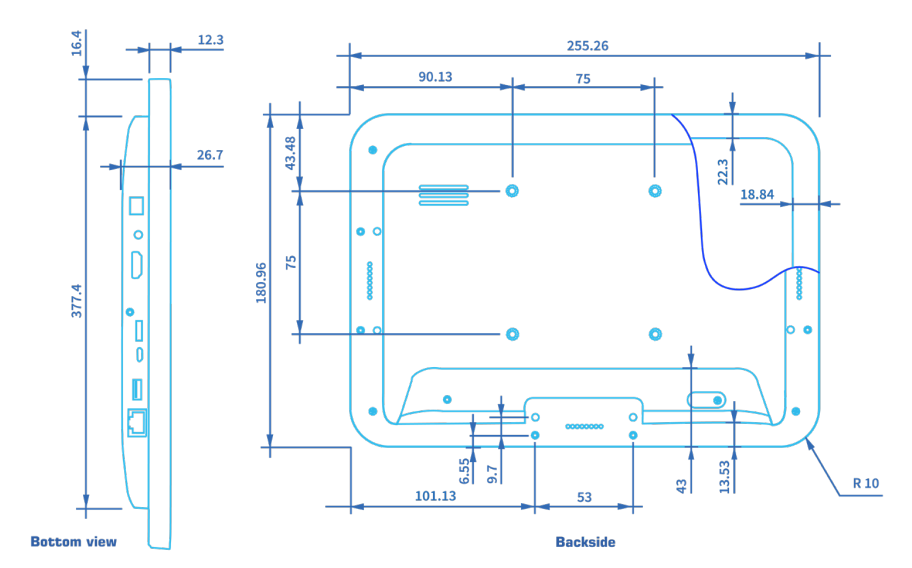
The VESA 75 mount is not central to the tablet. It is offset towards the top of the tablet by 19 mm. For a more detailed drawing please see the technical drawing at the bottom of this page.
Key restraints when affixing the tablets to pedestals, mounts or brackets are highlighted in red. These include the ethernet port and speakers.
If the speakers are covered this will only effect the sound of the instructions coming from the tablet. If the ethernet is blocked this will render the tablet inoperable.
When designing the housing, sufficient space be provided for the network cable's bend radius. Where cables pass through metalwork, suitable grommets or edge protection should be fitted to prevent damage from sharp edges.
2. Network Connection
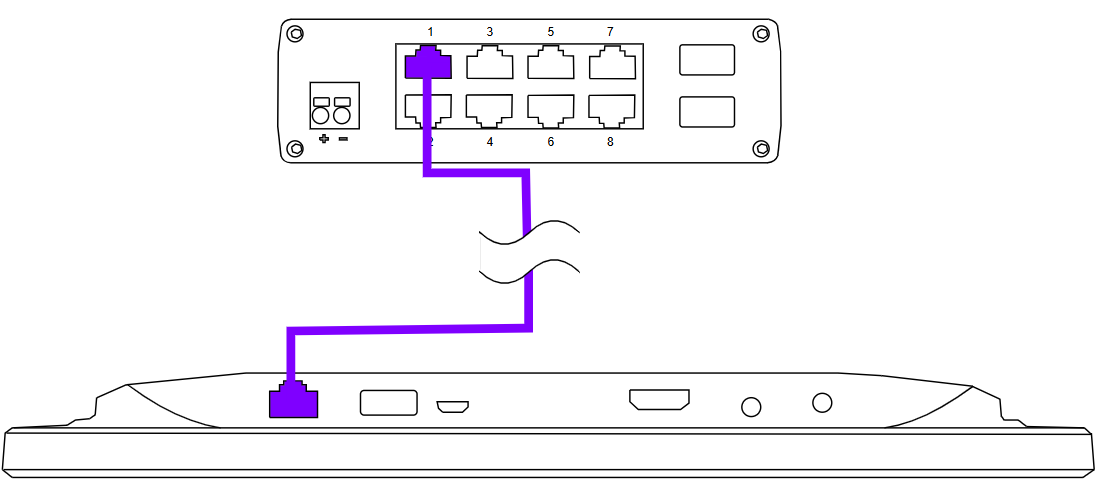
The APPC-10XP is power and controlled via the ethernet connection. It is important that high quality, shielded and LSZH cables are used given the environmental factors and PoE requirements for the tablets.
In order to minimise power loss and ethernet signal SNR issues. We recommend using ethernet cables of no longer than 50m. Additionally, where possible, no additional connector or junctions should be used. As shown below the connection from tablet to switch should be uninterrupted.
3. Configuration Update
Tablets ordered as part of the Elevate Dispatch system will come preconfigured to their specified location as per the order sheet and topology diagrams. However, in some situations a tablets configuration will require updating. In order to change the configuration following the steps below:
1. Access admin screen - Swipe up from the bottom of the screen twice in quick succession, opening up the admin code keypad
2. Enter the admin code for the tablet
3. Once in the admin code has been entered you will be met with the following menu:
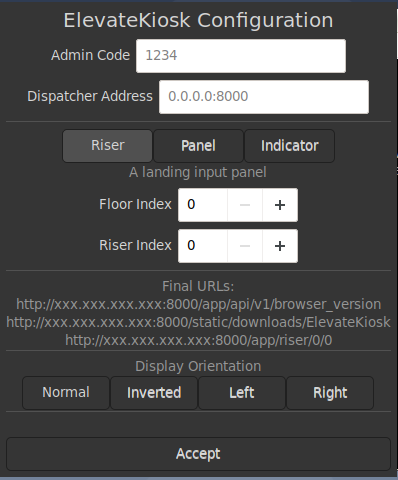
4. Enter the configuration information you require for the tablet
a. the admin code for the tablet
The admin code can only use numerical values.
b. Dispatcher IP address and port
This must always be set to 192.168.10.20:8000, unless otherwise specified.
c. Tablet type - select the tablet type that you are replacing; riser = kiosk, panel = cop.
d. Floor index - the floor of the of the kiosk
e. Riser index - the riser of the kiosk
f. Panel index - the lift of the panel
g. Display orientation - the orientation of the tablet; normal = landscape, inverted = landscape inverted, left = portrait ethernet on the left, right = portrait ethernet on the right
4. Technical Drawing
5. Revision and Document Control
| Field | Detail |
| Last Reviewed | 12/05/2026 |
| Revision | 1.0 |
| Next Review Date | 12/05/2027 |
Was this article helpful?
That’s Great!
Thank you for your feedback
Sorry! We couldn't be helpful
Thank you for your feedback
Feedback sent
We appreciate your effort and will try to fix the article