Introduction
This article covers the setup and installation of the Teltonika network switch used as part of the Elevate Dispatch System.
The Teltonika switch provides the local network connection between the main Elevate Dispatch System devices, including dispatchers, PoE tablets, modem/router equipment and any project-specific network devices.
This article should be used alongside the project-specific network topology drawing supplied with the system.
1. Purpose of the Teltonika Switch
The Teltonika switch is used to provide a dedicated network for the Elevate Dispatch System.
It allows the following devices to communicate:
- Dispatchers
- PoE tablets
- Teltonika modem or router
- Changeover device, where applicable
- Other project-specific Elevate Dispatch network equipment
The switch should normally be treated as part of the dedicated Elevate Dispatch control network and should not be used for unrelated site equipment unless this has been confirmed by C.E. Electronics.
2. Physical Installation
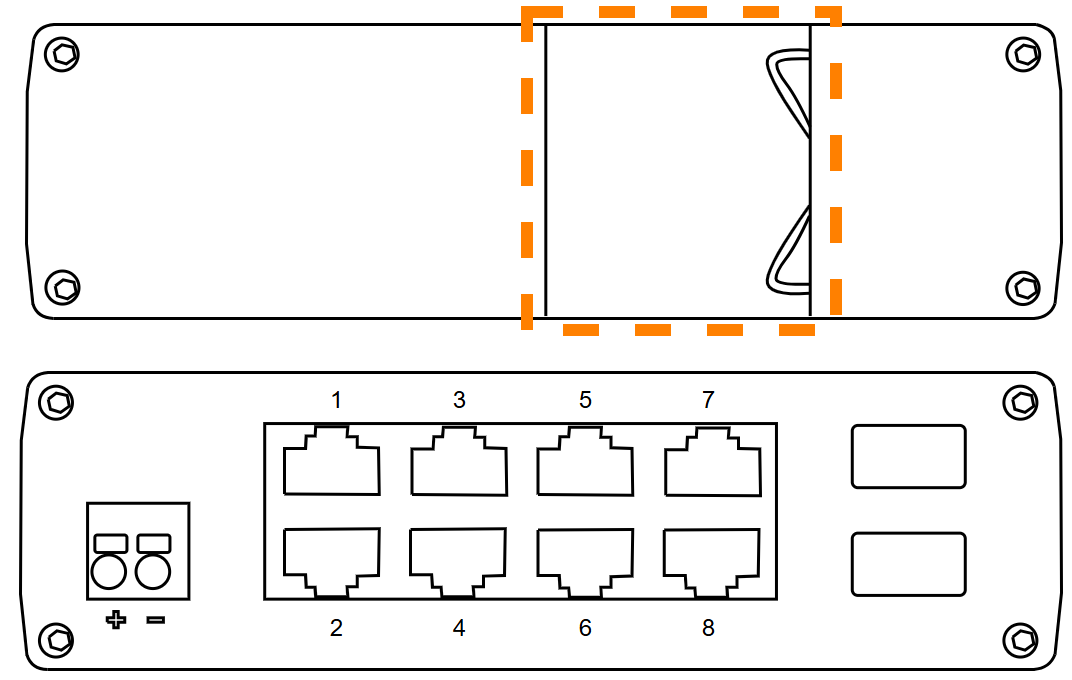
The Teltonika TSW202 measures 132 mm wide by 44.2 mm tall by 122.2 mm thick, as per the diagrams above.
Mounting of the Teltonika TSW202 can be done via the DIN rail mounting brackets on the rear of the tablet, highlighted in orange.
3. Before Installation
Before installing the Teltonika switch, check that you have the following:
- Teltonika switch
- Correct power supply
- Ethernet cables
- Project-specific network topology drawing
- Cabinet or mounting location
- Labels for identifying network cables
Check the switch for any signs of damage before installation. Do not install the switch if the enclosure, terminals or network ports appear damaged.
Always refer to the supplied project documentation for the correct wiring and port allocation.
4. Mounting the Switch
The Teltonika switch should be installed in a suitable electrical panel, control cabinet or other protected location.
When mounting the switch, ensure that:
- The switch is securely fixed.
- There is adequate ventilation around the unit.
- The switch is protected from water, dust and mechanical damage.
- The unit is accessible for inspection and maintenance.
- The Ethernet ports are accessible.
- The power connection is secure.
Where a DIN rail mount is supplied, ensure the switch is correctly clipped onto the rail and cannot move freely.
5. Power Connection
Connect the switch power supply in accordance with the supplied documentation and project wiring details.
Before applying power, check that:
- The supply voltage is correct for the switch.
- The polarity is correct, where applicable.
- The terminals are secure.
- The power supply is suitably rated.
- The switch is correctly earthed, where required.
Once powered, the switch should show power indication LEDs.
Do not proceed with system commissioning until the switch is powered correctly.
Do not use an alternative power supply unless it has been confirmed as suitable.
6. Network Connections
Connect the network devices to the Teltonika switch in accordance with the project topology drawing.
Typical connections may include:
| Device | Typical Connection |
| Dispatcher | Connected directly to switch |
| Teltonika Modem | Connected directly to switch |
| PoE Tablet | Connected to PoE switch, injector or switch port as specified |
| Changeover Device | Connected as shown on project drawings |
7. Cable Requirements
Use good-quality Ethernet cable suitable for the installation environment.
Recommended practice:
- Use Cat6a or better Ethernet cable.
- Use shielded cable.
- Use LSZH cable where specified by the site.
- Avoid unnecessary couplers or joins.
- Keep cable runs as short as reasonably possible.
- Label both ends of each cable.
- Keep network cables away from sources of electrical interference where possible.
8. Device Labelling
Each Ethernet cable should be clearly labelled at both ends.
Recommended labels include:
- Primary Dispatcher
- Secondary Dispatcher
- Teltonika Modem
- Tablet R/0/0
- Tablet R/1/0
- Changeover Device
- PoE Switch
The labels should match the project drawings where possible.
Clear labelling makes commissioning, maintenance and troubleshooting much easier.
9. Switch LEDs
The Teltonika switch will normally include LED indicators for power and network activity.
Typical LED indications may include:
| LED | Meaning |
| Power LED | Switch is powered |
| Port LED On | Network device connected |
| Power LED Flashing | Network activity present |
| Port LED Off | No network link detected |
LED behaviour may vary depending on the switch model. Refer to the manufacturer documentation for model-specific LED information.
10. Basic Checks After Installation
After the switch has been installed and powered, complete the following checks:
- Confirm the switch is securely mounted.
- Confirm the correct power supply is connected.
- Confirm the power LED is on.
- Confirm each connected device has a link light.
- Confirm all network cables are labelled.
- Confirm the dispatchers are connected.
- Confirm the modem is connected, where supplied.
- Confirm any PoE tablets connected correctly.
- Confirm the changeover device is connected, where applicable.
- Confirm no unauthorised devices are connected to the Elevate Dispatch network.
11. Troubleshooting
Switch does not power on
Check the following:
- The power supply is switched on.
- The supply voltage is correct.
- The polarity is correct, where applicable.
- The power connector is fully inserted.
- Any fuse or circuit protection has not tripped.
- The power supply is correctly rated for the switch.
A connected device has no network link
Check the following:
- The Ethernet cable is fully inserted at both ends.
- The cable is connected to the correct port.
- The connected device is powered.
- The cable is not damaged.
- The cable has been tested.
- The switch port is not damaged.
- The device is connected to the correct network.
Tablet does not power on
Check the following:
- The tablet is connected to a PoE-enabled port or suitable PoE source.
- The switch or PoE injector is powered.
- The Ethernet cable is correctly terminated.
- The cable run is not too long.
- The tablet is connected to the correct port.
For further information, refer to the dedicated PoE tablet article.
Intermittent network connection
Check the following:
- Network cables are correctly terminated.
- There are no loose connectors.
- There are no unnecessary couplers or joins.
- Cable runs are not routed alongside high-voltage or noisy electrical equipment.
- The switch is not overheating.
- The power supply is stable.
- Only approved devices are connected to the network.
Dispatcher or tablet cannot communicate
Check the following:
- Both devices are connected to the Elevate Dispatch network.
- The switch is powered.
- Link lights are present on the relevant ports.
- The correct network topology has been followed.
- No unauthorised network equipment has been added.
- The dispatcher and tablet configuration is correct.
For further information, refer to the dispatcher and PoE tablet articles.
12. Important Notes
The Teltonika switch is part of the Elevate Dispatch System network and should not be reconfigured, reset or replaced without confirmation from C.E. Electronics.
Do not connect unrelated site devices to the switch unless this has been specifically approved.
Any changes to the network arrangement, switch configuration or connected equipment may affect system operation.
For project-specific information, always refer to the supplied topology drawing and wiring documentation.
13. Revision and Document Control
| Field | Detail |
| Last Reviewed | 12/05/2026 |
| Revision | 1.0 |
| Next Review Date | 12/05/2027 |
Was this article helpful?
That’s Great!
Thank you for your feedback
Sorry! We couldn't be helpful
Thank you for your feedback
Feedback sent
We appreciate your effort and will try to fix the article